

Inputs
Outputs
- File (default)
- JSON
Three tokens: File Name (
result.pdf), File Content Type (application/pdf) and
File Content (the bytes). Drop File Content into a Create file step or the next
Nitro action.Example flow
Compress every PDF added to a SharePoint library and write the result to anArchive folder with
the original name. This is the flow built step by step in
Get started.
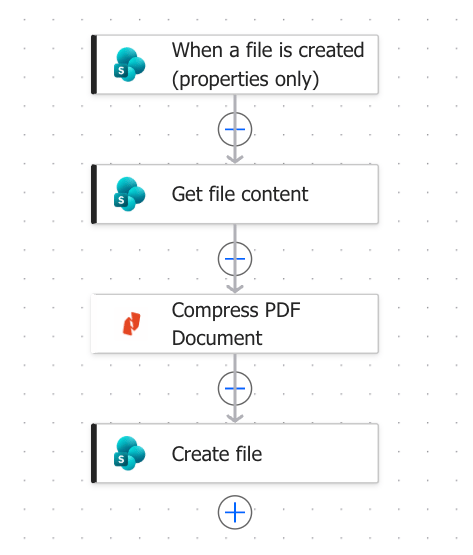
1
When a file is created (properties only)
SharePoint trigger, scoped to the document library you want to watch.
2
Condition
Only continue when the file is a PDF:
3
Get file content
SharePoint. File Identifier → the trigger’s Identifier.
4
Compress PDF Document
Nitro. PDF File → the previous step’s File Content.
5
Create file
SharePoint. Folder Path →
/Shared Documents/Archive.
File Name → the trigger’s File name with extension.
File Content → the Nitro step’s File Content.Related
- Optimize PDF Document — choose a profile instead of always-smallest
- Working with files
- Compress API reference