Get client secret pair
The Nitro APIs use machine-to-machine OAuth with the client credentials grant type to generate access tokens for authenticating API requests. You create an API application and obtain its client credentials in the Nitro Developer portal:1
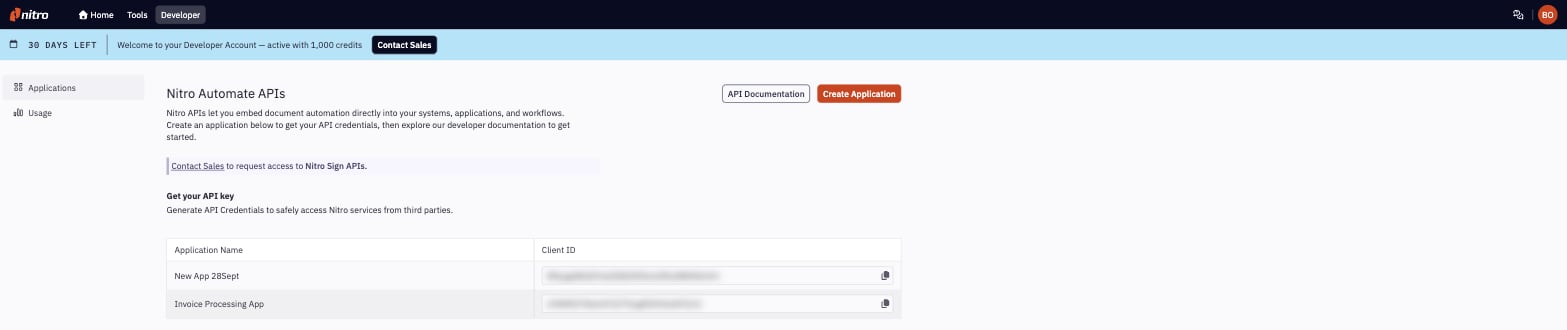
Open the Developer portal
- Go to app.gonitro.com/developer/applications
- Sign in with your Nitro account if prompted. The Developer tab is also available from the top navigation once you are signed in.
2
Create an application
API access credentials are granted to applications. You can create up to 25 applications with separate access credentials.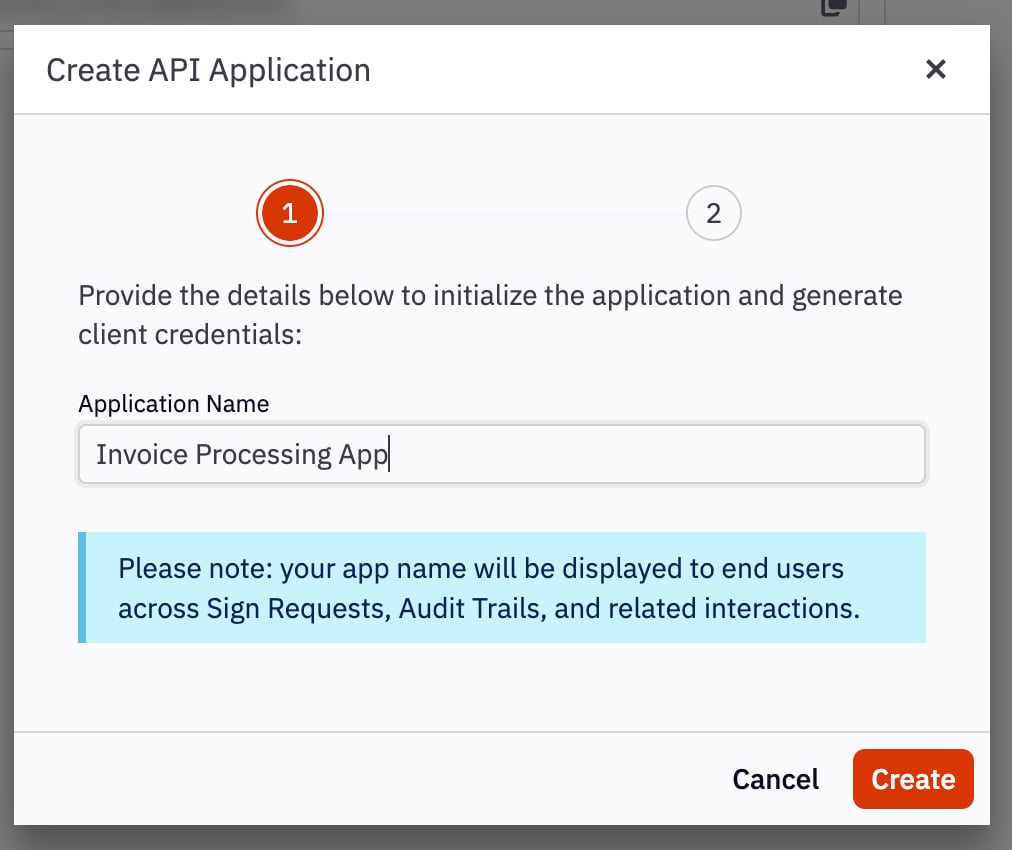
- Click Create Application in the upper right corner
- Enter a descriptive name for your application (for example “Invoice Processing App” or “Document Automation”) and click Create
< and > are not allowed.Which entitlement you need depends on the API you are integrating with. The
Sign API requires a Nitro Sign Enterprise plan; the PDF Services API
requires PDF Services API access. See
Access the Nitro APIs for how to request
either.
3
Save your credentials
When the application is created, the portal shows: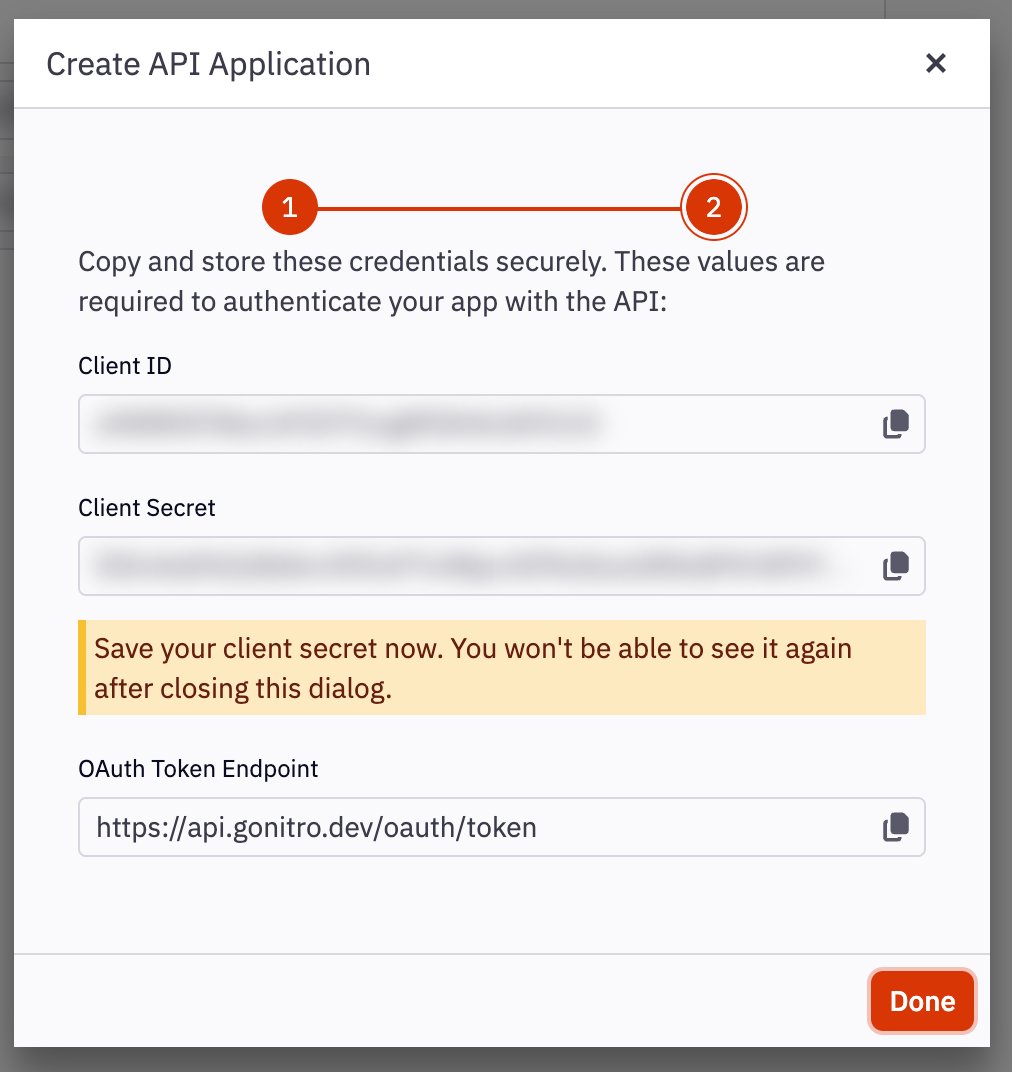
- Client ID: a public identifier for your application.
- Client Secret: a private key tied to your organization that lets your application generate short-lived access tokens for authenticated HTTPS requests to the Nitro APIs.
- OAuth Token Endpoint: the URL where your application requests access tokens.
Store your Client Secret in a secure location. Do not save it on personal devices, mobile phones, shared folders, or source code repositories. Instead, use a secrets manager to store it and expose it to your application using that manager’s best practices.
4
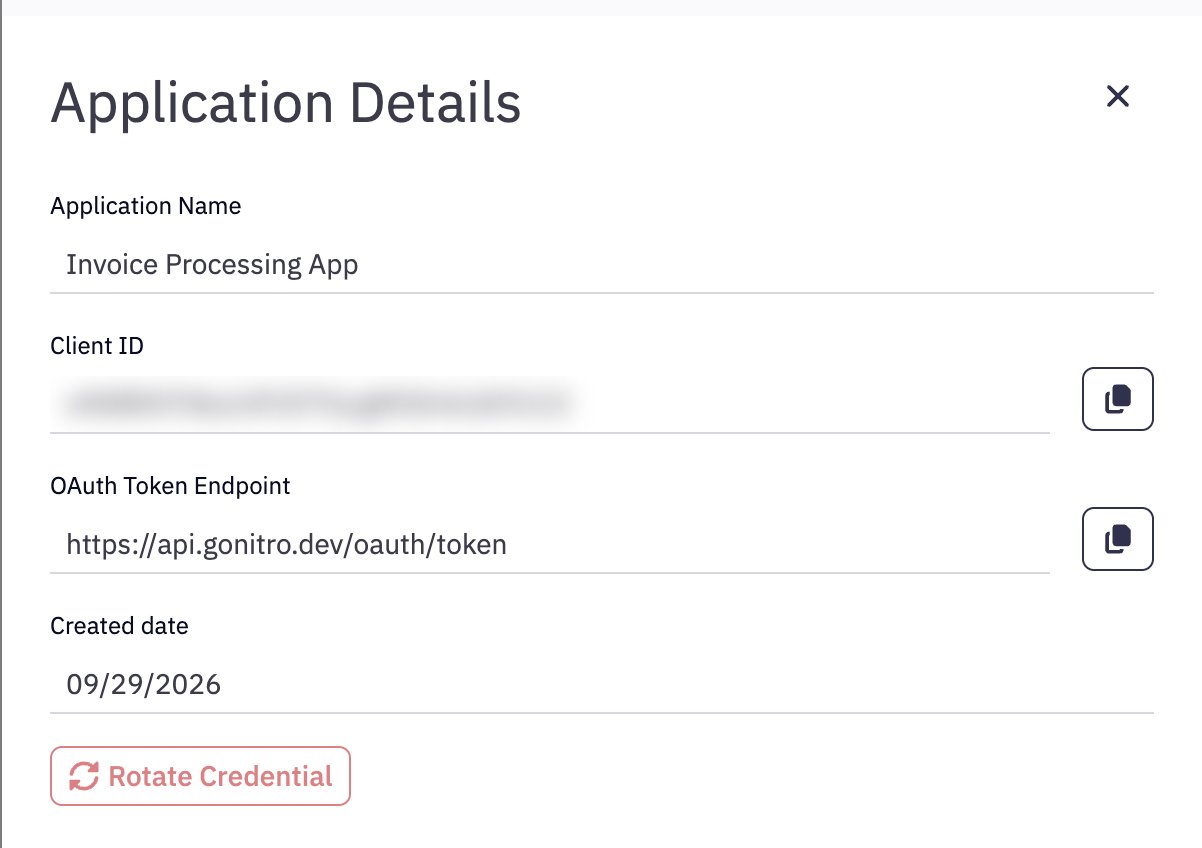
Retrieve the Client ID any time
Click an application in the list to open Application Details. The panel shows the application name, Client ID, OAuth Token Endpoint and creation date, with a copy button next to each value, and the Rotate Credential action.