> ## Documentation Index
> Fetch the complete documentation index at: https://developers.gonitro.com/docs/llms.txt
> Use this file to discover all available pages before exploring further.
# Working with files
> How Power Automate passes files between steps, how to chain Nitro actions, and the exact JSON each Nitro action takes and returns.
Every Nitro action takes a file and returns either a file or JSON. This page covers the plumbing:
how Power Automate carries binary content between steps, how to feed one Nitro action's output into
the next, and the JSON shapes you need for the actions that take parameters.
## How Power Automate carries a file
Power Automate does not have a native binary type. A file travelling through a flow is a JSON object
with two properties: a content type and the bytes encoded as base64.
```json theme={null}
{
"$content-type": "application/pdf",
"$content": "JVBERi0xLjcKJeLjz9MKMSAwIG9iago8PC9UeXBlL0NhdGFsb2c…"
}
```
That is what SharePoint's **Get file content** produces, what an Outlook attachment's **Content**
holds, and what the Nitro action receives when you drop one of those tokens into a file input. The
run history shows it as `file/body.$content-type` and `file/body.$content` under the Nitro step's
inputs.
Nitro actions return files the same way, as a base64 string in the **File Content** token, with the
MIME type in **File Content Type** and a name in **File Name**. When you drop **File Content** into
another action's file input — a Nitro action, SharePoint **Create file**, an email attachment — the
designer decodes it for you. You never handle base64 yourself unless you are constructing a file
from scratch (see [Building a file from data in the flow](#building-a-file-from-data-in-the-flow)).
In the designer every file input has two parts: the content (**PDF File**, **Word File**, and so on)
and an optional **(file name)** field. Nitro only needs the content. The file name is passed through
to the API and is worth setting when the extension matters — for example a data file for
**Fill PDF Form**, where `.json` versus `.csv` tells Nitro how to parse it.
## Getting file content in
| Source | Step to use | What to drop into the Nitro file input |
| - | - | - |
| SharePoint | **Get file content** or **Get file content using path** | The step's **File Content** |
| OneDrive for Business | **Get file content** | The step's **File Content** |
| Outlook | **When a new email arrives (V3)**, inside **Apply to each** over **Attachments** | The attachment's **Content** |
| Dataverse | **Download a file or an image** | The step's **File Content** |
| Teams / Forms uploads | **Get file content using path** (the upload lands in OneDrive or SharePoint) | The step's **File Content** |
| A URL | **HTTP** (GET) | The HTTP step's **Body** |
| A previous Nitro action | — | Its **File Content** (see below) |
SharePoint's **When a file is created (properties only)** and **When a file is created or modified
(properties only)** triggers do not carry the file's bytes. Always follow them with
**Get file content** using the trigger's **Identifier**.
## Chaining Nitro actions
Every action that returns a file exposes three tokens in the dynamic content picker:
| Token | Property | What it holds |
| - | - | - |
| **File Name** | `fileName` | The output's name, for example `result.pdf` or `result.docx` |
| **File Content Type** | `fileContentType` | The MIME type, for example `application/pdf` or `application/zip` |
| **File Content** | `fileContent` | The file's bytes, base64 encoded |
To pass a file from one Nitro action to the next, drop **File Content** into the downstream action's
file input and **File Name** into its **(file name)** field. That is the whole recipe — no
expressions, no **Compose** steps.
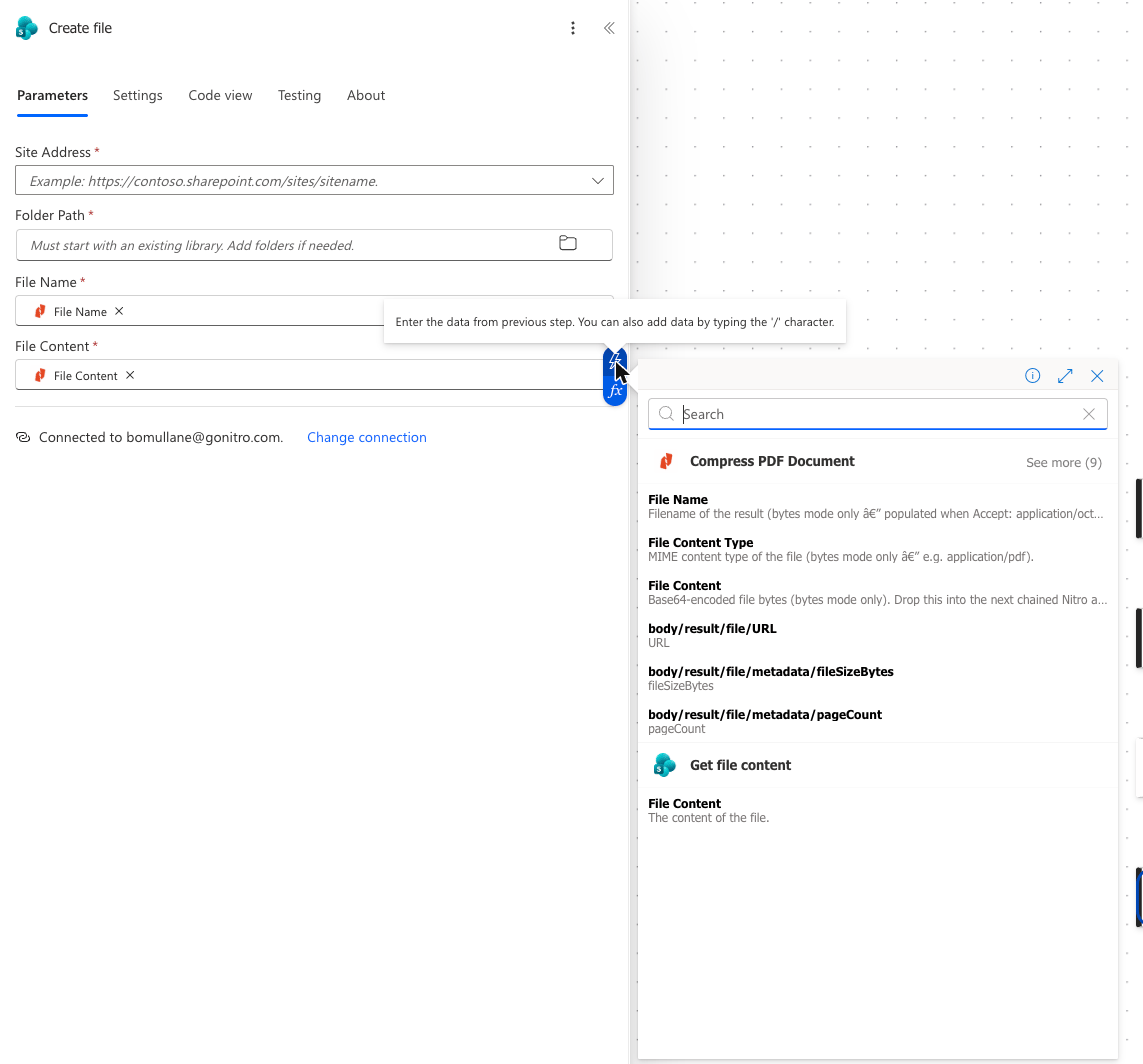 For example, a scan-to-searchable-archive flow:
1. **OCR PDF Document** — **PDF File** ← SharePoint **File Content**.
2. **Optimize PDF Document** — **PDF File** ← OCR's **File Content**, **Optimization Profile** = `archive`.
3. **PDF to PDFA** — **PDF File** ← Optimize's **File Content**.
4. **Create file** — **File Content** ← PDF to PDFA's **File Content**.
Each hop is a synchronous round trip to Nitro, so a chain of three actions on a 20 MB file takes
roughly three times as long as one. Nitro deletes its temporary copies about 15 minutes after each
operation, which is well beyond what a chain needs.
If an existing flow's Nitro step does not show a **File Name** token, it was added before the
connector was upgraded and Power Automate has cached the old schema. Delete the step and add it
again to pick up the current definition.
## Getting results out
Drop the last Nitro action's **File Content** into whichever step stores or sends the file:
| Destination | Step | Where the tokens go |
| - | - | - |
| SharePoint | **Create file** | **File Content** → *File Content*; a name → *File Name* |
| OneDrive for Business | **Create file** | Same as SharePoint |
| Outlook | **Send an email (V2)** → **Attachments** | **File Content** → *Attachments Content*; a name → *Attachments Name* |
| Teams | **Post message** does not take files; upload with **Create file** first and share the link | — |
| Dataverse | **Upload a file or an image** | **File Content** → *Content* |
| Power Apps | **Respond to a PowerApp or flow** (File output) | **File Content** |
## Output modes
Actions that return a file have an **Accept (Output format)** input under **Advanced parameters**.
It selects how the result comes back.
The action waits for Nitro and returns the file itself in **File Name**, **File Content Type**
and **File Content**. This is the mode every example on these pages uses, and the right choice
unless you have a reason to avoid moving bytes through the flow.
The **body/result/file/…**, **Job ID**, **Job Status** and **Job Progress** tokens are still
listed in the picker but resolve to `null` in this mode. Ignore them.
The action returns a JSON object with a signed download URL and metadata instead of the file:
```json theme={null}
{
"result": {
"file": {
"URL": "https://…",
"contentType": "application/pdf",
"metadata": { "fileSizeBytes": 49080, "pageCount": 12 }
}
}
}
```
The picker exposes these as **body/result/file/URL**, **…/metadata/fileSizeBytes** and
**…/metadata/pageCount**. Use this mode when you only need the metadata, or when the result is
large and you would rather hand the URL to another system than route the bytes through
Power Automate.
The URL is valid for about **15 minutes**, and Nitro deletes the file after that. Download it
with an **HTTP** GET in the same run; do not store the URL.
**Fill PDF Form** currently fails in this mode with *The API operation 'FillPDFForm' is missing
required property 'body/type'* even though the fill succeeded. Leave **Accept** at
`application/octet-stream` for that action.
Setting the **Prefer** header to `respond-async` makes Nitro return a **Job ID** immediately
instead of waiting for the result. The connector does not expose a job-polling action, so this
mode is only useful if you fetch the result with the
[Jobs REST endpoint](/docs/api-reference/platform/jobs/result) from an **HTTP** step. For ordinary
flows, stay synchronous.
## Multi-file outputs
**Split PDF Document** and **PDF to Image** produce more than one file.
* In the default binary mode the result is a **ZIP archive** — **File Content Type** is
`application/zip` and **File Name** is `result.zip`. Power Automate has no built-in unzip action,
so write the archive to SharePoint or OneDrive as-is, or use an Azure Function or a third-party
connector to expand it.
* In `application/json` mode the response carries a `result.files` array, one entry per output
file, each with a `URL`, `contentType` and `metadata`. The picker does not list this array, so
reference it with an expression and loop over it:
```
body('Split_PDF_Document')?['result']?['files']
```
Inside **Apply to each**, fetch `items('Apply_to_each')?['URL']` with an **HTTP** GET and pass
the HTTP **Body** to **Create file**. Download within the 15-minute window.
The JSON route is usually the practical one when you need the individual files.
## File names
Nitro names its output generically — `result.pdf`, `result.docx`, `result.zip` — so the **File
Name** token is fine for chaining but a poor choice for what you save. Build the saved name from the
trigger instead:
| Want | Expression for **File Name** on **Create file** |
| - | - |
| Same name as the source | `triggerOutputs()?['body/{FilenameWithExtension}']` (SharePoint) |
| Prefix the source name | `concat('compressed-', triggerOutputs()?['body/{FilenameWithExtension}'])` |
| New extension after a conversion | `concat(triggerOutputs()?['body/{Name}'], '.docx')` — `{Name}` is the name without extension |
| Unique per run | `concat('report-', formatDateTime(utcNow(), 'yyyyMMdd-HHmmss'), '.pdf')` |
Remember to change the extension when you convert: a **PDF to Word** output written as `.pdf` will
not open in Word. **File Content Type** tells you what you have if a flow handles several types.
## Building a file from data in the flow
Sometimes the file does not exist yet — the content comes from a trigger body, an Excel script, or a
**Compose** step. Power Automate can turn any string into file content with one expression.
**Fill PDF Form** takes the field values as a data file (**Form Data File**) in CSV, JSON, XFDF
or FDF. To build a JSON data file from an array already in the flow — say `fields` in an HTTP
trigger's body — set the **Form Data File** content to:
```
base64ToBinary(base64(string(triggerBody()?['fields'])))
```
and its **(file name)** to `formdata.json`. The `.json` extension is how Nitro knows which
parser to use. The array must be a list of field/value objects:
```json theme={null}
[
{ "field": "first_name", "value": "Jane" },
{ "field": "last_name", "value": "Doe" },
{ "field": "is_active", "value": true }
]
```
A flat object such as `{"first_name": "Jane"}` is rejected with *PDF Form Data Is Invalid*.
If the values are small, skip the data file entirely and put them in **Options (JSON)** as
`{"fields":[…]}` — see [JSON inputs](#json-inputs-by-action). Checkboxes accept `true`, `yes`,
`1` or `x`; every value is stringified.
Put the markup in a **Compose** step (or build it with `concat(...)`), then set **HTML File**
to:
```
base64ToBinary(base64(outputs('Compose')))
```
with **(file name)** `page.html`. Images and stylesheets must be inlined or reachable by URL.
**Watermark PDF Document** takes two files. Load the logo once with SharePoint
**Get file content using path** and drop its **File Content** into **Watermark Image**; the PDF
goes into **PDF File** as usual.
`base64ToBinary(base64(string(x)))` looks redundant, but it is the reliable way to make the designer
treat a string as file bytes rather than as text to be sent as a JSON value.
## JSON inputs by action
Most actions take their options as a JSON object typed into a single text field. The table gives the
exact shape each action expects, checked against the connector definition and the
[REST API reference](/docs/api-reference/platform/transformations/compress). Field names are
case-sensitive, and page indices are zero-based everywhere.
Paste JSON with straight quotes. A smart quote copied from a document is the most common cause of a
**400 Bad request**.
### Conversions
| Action | Input | Value |
| - | - | - |
| **PDF to Image** | **Output Image Format** (dropdown) | `png` or `jpeg` — no JSON needed |
| **PDF to PDFA** | **PDF/A Parameters** | `{"conformance":"2b"}` (default). Optional `imageQuality` (0.01–1.0, default 0.8) and `copyMetadata` (default true). Levels ending in `a` need a tagged source PDF. |
| All other conversions | — | No parameters; the target format is implied by the action |
### Transformations
| Action | Input | Value |
| - | - | - |
| **Compress PDF Document** | — | No parameters (always the smallest-file-size profile) |
| **Optimize PDF Document** | **Optimization Profile** (dropdown) | `web`, `print`, `archive`, `minimal-file-size` or `mixed-raster-content` |
| **Flatten PDF Document** | — | No parameters |
| **Rotate PDF Document** | **Rotate pages (clockwise degrees)** | `{"rotations":[{"page_index":0,"amount":90}]}` — `amount` is 90, 180 or 270. Note the underscore in `page_index`. |
| **Delete PDF Pages** | **Delete Pages** | `{"pageIndices":[0,2]}` |
| **Split PDF Document** | **Pages** | `{"pageIndices":[[0,2],[1,3,4]]}` — each inner array becomes one output file |
| **Merge PDF Documents** | **Options (JSON)** (advanced) | `{"tableOfContents":{"enabled":false}}`. By default the merged PDF gets a bookmark per source document (*Document 1*, *Document 2*, …); set `enabled` to `false` to merge without them. No page is inserted either way. |
| **Redact PDF Pages** | **Properties** | `{"redactions":[{"pageIndex":0,"boundingBox":[100,100,200,120],"label":"optional"}]}` — box is `[x, y, width, height]` in points from the top-left |
| **Watermark PDF Document** | **Watermark Parameters** | `{"boundingBox":[210,10,290,60],"opacity":0.5,"rotation":0,"pageIndices":[0]}`. Box is `[x0, y0, x1, y1]` — corners, not width/height. Optional `contentDepth` (`above_existing`/`below_existing`), `fitToPageWidth`, `fitToPageHeight`, `centerOnPage`, `rotateWithPage`, `flip`. |
| **Set PDF Properties** | **Properties** | `{"title":"…","author":"…","subject":"…","keywords":"…","creator":"…","producer":"…"}` — include only the fields to change |
| **Password Protect PDF Document** | **Protection Parameters** | `{"ownerPassword":"…","userPassword":"…","permissions":["print","copy"]}` — at least one password; permissions are `print`, `modify`, `copy`, `annotate`, `form`, `assemble`, `print-hq` |
| **Unprotect PDF Document** | **Unprotection parameters** | `{"ownerPassword":"…","userPassword":"…"}` |
| **OCR PDF Document** | **OCR Parameters** (advanced) | `{"language":"english","quality":"high","pageIndices":[0,1]}`. Optional `isOutputPDFEditable`, `compressionLevel` (`low`/`medium`/`high`), `PDFVersion` (`pdf14`–`pdf17`). One language per request. |
The in-designer hint for **Split** shows `pageIndice` and the hint for **Password Protect** shows
`ownerPredentials`. Both are typos in the hint text; the API requires `pageIndices` and
`ownerPassword` as shown above.
### Extractions
| Action | Input | Value |
| - | - | - |
| **Extract all Text from PDF** | **Extraction Parameters** (optional) | `{"pageIndices":[0,2],"readingOrder":true}` — omit for the whole document |
| **Extract searched Text from PDF** | **Queries to Search** | `{"queries":[{"text":"Name"},{"text":"tax id: [0-9]+","isRegex":true,"regexFlags":["ignore-case"]}]}` — literal matching is case-sensitive |
| **Extract PII from PDF** | **Document Language** (dropdown) | `en` or `es` |
| All other extractions | — | No parameters |
### Forms
| Action | Input | Value |
| - | - | - |
| **Fill PDF Form** | **Form Data File** *or* **Options (JSON)** | Data file: JSON `[{"field":"name","value":"x"},…]`, CSV, XFDF or FDF. Inline: `{"strict":true,"fields":[{"field":"name","value":"x"}]}`. `strict` (default false) fails the request on unknown field names. |
| **Create Fillable Forms** | **Form Fields (JSON)** | `{"formFields":[{"pageIndex":0,"fieldType":"TextBox","name":"firstName","boundingBox":[72,680,200,18],"value":""}]}` — `fieldType` is `TextBox` or `CheckBox`; box is `[x, y, width, height]` |
## Using JSON outputs
Extraction actions return JSON rather than a file. Everything is under a `result` property, and the
picker lists the fields it knows about as `body/result/…` tokens.
| Action | Where the data is |
| - | - |
| **Extract all Text from PDF** | `result` — a single string with the whole document's text |
| **Extract PDF Form Data** | `result.fields[]` with `name`, `value`, `confidence`; `result.averageConfidence` |
| **Extract PDF Table Data** | `result.tables[]` with `title`, `cells[row][column]`, `headerCells`, `summaryCells`, `confidences`, `averageConfidence` |
| **Extract Properties from PDF** | `result.title`, `author`, `subject`, `keywords`, `creator`, `producer`, `creationDate`, `modDate`, `trapped` |
| **Extract searched Text from PDF** | `result.textBoxes[]` — one per query, each with `matches[]` → `matchedText`, `boxes[]` (`pageIndex`, `boundingBox`, `textPiece`), `groups[]` |
| **Extract PII from PDF** | `result.PIIBoxes[]` with `text`, `textPiece`, `pageIndex`, `boundingBox`, `PIIType`, `confidence` |
| **Extract Invoice Data from PDF** | `result.expenseDocuments[]` with `summaryFields[]`, `summaryGroups[]`, `lineItemGroups[]` |
| **Smart Detect Form Fields** | `result.formFields[]` — the exact payload **Create Fillable Forms** takes |
Three ways to consume them, from simplest to most flexible:
1. **Drop a token.** Scalars such as `result.title` or `result.averageConfidence` go straight into a
condition or a message.
2. **Apply to each over an array.** Drop `result.fields` or `result.PIIBoxes` into the loop and
read `items('Apply_to_each')?['value']` inside it.
3. **Parse JSON.** Feed the Nitro step's **Body** to a **Parse JSON** action with a schema generated
from a sample run. Every nested field then becomes a typed token.
Two actions have out-of-date picker schemas: **Extract PDF Table Data** lists `formFields` tokens,
and **Smart Detect Form Fields** lists `fields` tokens with `type` and `confidence`. Neither matches
what the API returns. Read those results with an expression instead of the picker:
```
body('Extract_PDF_Table_Data')?['result']?['tables']
body('Smart_Detect_Form_Fields')?['result']?['formFields']
```
### Feeding one action's JSON into another
Some pairs of actions are designed to chain:
The detection result is exactly the parameter payload the generator wants. Set **Form Fields
(JSON)** on **Create Fillable Forms** to:
```
string(body('Smart_Detect_Form_Fields')?['result'])
```
and **PDF File** to the same PDF you detected on. To review or edit fields in between, run the
result through **Parse JSON**, a **Filter array** on `confidence`, and a **Compose** that
rebuilds `{"formFields": …}`.
Both use `[x, y, width, height]` boxes, but the shapes differ: PII returns `PIIBoxes`, Redact
wants `redactions`. Map one to the other with a **Select** action:
* **From**: `body('Extract_PII_from_PDF')?['result']?['PIIBoxes']`
* **Map**: `pageIndex` → `item()?['pageIndex']`, `boundingBox` → `item()?['boundingBox']`
Then set **Properties** on **Redact PDF Pages** to:
```
concat('{"redactions":', string(body('Select')), '}')
```
Add a **Filter array** before the **Select** to redact only certain `PIIType` values or a
minimum `confidence`.
Matches are nested two levels down (`textBoxes[].matches[].boxes[]`). Flatten them with nested
**Apply to each** loops appending to an array variable, or, simpler, use **Extract PII** when the
target is a standard PII category.
Properties gives you the document's title, author, dates and `producer`, which are handy for
conditions such as "skip files our own system already produced" (`result.producer`). It does
not include a page count; to branch on that, run any transformation in `application/json` mode
and read `body/result/file/metadata/pageCount`.
## Merging a variable number of files
**Merge PDF Documents** exposes eight discrete inputs (**File 1** … **File 8**) rather than a list,
so the number of files has to be known at design time.
Fill only the slots you need. **File 1** and **File 2** are required; **File 3** to **File 8**
are under **Advanced parameters** and can be left empty.
Collect the files into an array variable, then bind each input with an index expression such as
`variables('files')?[2]`, guarding the optional slots with a condition on
`length(variables('files'))`.
Merge in batches: merge the first eight, then merge that result with the next seven, and so on.
Each call counts against the throttling limit, so keep batches as large as possible. The
bookmarks from an intermediate merge are replaced by the next merge's *Document n* bookmarks,
so only the final call's bookmarks survive.
For example, a scan-to-searchable-archive flow:
1. **OCR PDF Document** — **PDF File** ← SharePoint **File Content**.
2. **Optimize PDF Document** — **PDF File** ← OCR's **File Content**, **Optimization Profile** = `archive`.
3. **PDF to PDFA** — **PDF File** ← Optimize's **File Content**.
4. **Create file** — **File Content** ← PDF to PDFA's **File Content**.
Each hop is a synchronous round trip to Nitro, so a chain of three actions on a 20 MB file takes
roughly three times as long as one. Nitro deletes its temporary copies about 15 minutes after each
operation, which is well beyond what a chain needs.
If an existing flow's Nitro step does not show a **File Name** token, it was added before the
connector was upgraded and Power Automate has cached the old schema. Delete the step and add it
again to pick up the current definition.
## Getting results out
Drop the last Nitro action's **File Content** into whichever step stores or sends the file:
| Destination | Step | Where the tokens go |
| - | - | - |
| SharePoint | **Create file** | **File Content** → *File Content*; a name → *File Name* |
| OneDrive for Business | **Create file** | Same as SharePoint |
| Outlook | **Send an email (V2)** → **Attachments** | **File Content** → *Attachments Content*; a name → *Attachments Name* |
| Teams | **Post message** does not take files; upload with **Create file** first and share the link | — |
| Dataverse | **Upload a file or an image** | **File Content** → *Content* |
| Power Apps | **Respond to a PowerApp or flow** (File output) | **File Content** |
## Output modes
Actions that return a file have an **Accept (Output format)** input under **Advanced parameters**.
It selects how the result comes back.
The action waits for Nitro and returns the file itself in **File Name**, **File Content Type**
and **File Content**. This is the mode every example on these pages uses, and the right choice
unless you have a reason to avoid moving bytes through the flow.
The **body/result/file/…**, **Job ID**, **Job Status** and **Job Progress** tokens are still
listed in the picker but resolve to `null` in this mode. Ignore them.
The action returns a JSON object with a signed download URL and metadata instead of the file:
```json theme={null}
{
"result": {
"file": {
"URL": "https://…",
"contentType": "application/pdf",
"metadata": { "fileSizeBytes": 49080, "pageCount": 12 }
}
}
}
```
The picker exposes these as **body/result/file/URL**, **…/metadata/fileSizeBytes** and
**…/metadata/pageCount**. Use this mode when you only need the metadata, or when the result is
large and you would rather hand the URL to another system than route the bytes through
Power Automate.
The URL is valid for about **15 minutes**, and Nitro deletes the file after that. Download it
with an **HTTP** GET in the same run; do not store the URL.
**Fill PDF Form** currently fails in this mode with *The API operation 'FillPDFForm' is missing
required property 'body/type'* even though the fill succeeded. Leave **Accept** at
`application/octet-stream` for that action.
Setting the **Prefer** header to `respond-async` makes Nitro return a **Job ID** immediately
instead of waiting for the result. The connector does not expose a job-polling action, so this
mode is only useful if you fetch the result with the
[Jobs REST endpoint](/docs/api-reference/platform/jobs/result) from an **HTTP** step. For ordinary
flows, stay synchronous.
## Multi-file outputs
**Split PDF Document** and **PDF to Image** produce more than one file.
* In the default binary mode the result is a **ZIP archive** — **File Content Type** is
`application/zip` and **File Name** is `result.zip`. Power Automate has no built-in unzip action,
so write the archive to SharePoint or OneDrive as-is, or use an Azure Function or a third-party
connector to expand it.
* In `application/json` mode the response carries a `result.files` array, one entry per output
file, each with a `URL`, `contentType` and `metadata`. The picker does not list this array, so
reference it with an expression and loop over it:
```
body('Split_PDF_Document')?['result']?['files']
```
Inside **Apply to each**, fetch `items('Apply_to_each')?['URL']` with an **HTTP** GET and pass
the HTTP **Body** to **Create file**. Download within the 15-minute window.
The JSON route is usually the practical one when you need the individual files.
## File names
Nitro names its output generically — `result.pdf`, `result.docx`, `result.zip` — so the **File
Name** token is fine for chaining but a poor choice for what you save. Build the saved name from the
trigger instead:
| Want | Expression for **File Name** on **Create file** |
| - | - |
| Same name as the source | `triggerOutputs()?['body/{FilenameWithExtension}']` (SharePoint) |
| Prefix the source name | `concat('compressed-', triggerOutputs()?['body/{FilenameWithExtension}'])` |
| New extension after a conversion | `concat(triggerOutputs()?['body/{Name}'], '.docx')` — `{Name}` is the name without extension |
| Unique per run | `concat('report-', formatDateTime(utcNow(), 'yyyyMMdd-HHmmss'), '.pdf')` |
Remember to change the extension when you convert: a **PDF to Word** output written as `.pdf` will
not open in Word. **File Content Type** tells you what you have if a flow handles several types.
## Building a file from data in the flow
Sometimes the file does not exist yet — the content comes from a trigger body, an Excel script, or a
**Compose** step. Power Automate can turn any string into file content with one expression.
**Fill PDF Form** takes the field values as a data file (**Form Data File**) in CSV, JSON, XFDF
or FDF. To build a JSON data file from an array already in the flow — say `fields` in an HTTP
trigger's body — set the **Form Data File** content to:
```
base64ToBinary(base64(string(triggerBody()?['fields'])))
```
and its **(file name)** to `formdata.json`. The `.json` extension is how Nitro knows which
parser to use. The array must be a list of field/value objects:
```json theme={null}
[
{ "field": "first_name", "value": "Jane" },
{ "field": "last_name", "value": "Doe" },
{ "field": "is_active", "value": true }
]
```
A flat object such as `{"first_name": "Jane"}` is rejected with *PDF Form Data Is Invalid*.
If the values are small, skip the data file entirely and put them in **Options (JSON)** as
`{"fields":[…]}` — see [JSON inputs](#json-inputs-by-action). Checkboxes accept `true`, `yes`,
`1` or `x`; every value is stringified.
Put the markup in a **Compose** step (or build it with `concat(...)`), then set **HTML File**
to:
```
base64ToBinary(base64(outputs('Compose')))
```
with **(file name)** `page.html`. Images and stylesheets must be inlined or reachable by URL.
**Watermark PDF Document** takes two files. Load the logo once with SharePoint
**Get file content using path** and drop its **File Content** into **Watermark Image**; the PDF
goes into **PDF File** as usual.
`base64ToBinary(base64(string(x)))` looks redundant, but it is the reliable way to make the designer
treat a string as file bytes rather than as text to be sent as a JSON value.
## JSON inputs by action
Most actions take their options as a JSON object typed into a single text field. The table gives the
exact shape each action expects, checked against the connector definition and the
[REST API reference](/docs/api-reference/platform/transformations/compress). Field names are
case-sensitive, and page indices are zero-based everywhere.
Paste JSON with straight quotes. A smart quote copied from a document is the most common cause of a
**400 Bad request**.
### Conversions
| Action | Input | Value |
| - | - | - |
| **PDF to Image** | **Output Image Format** (dropdown) | `png` or `jpeg` — no JSON needed |
| **PDF to PDFA** | **PDF/A Parameters** | `{"conformance":"2b"}` (default). Optional `imageQuality` (0.01–1.0, default 0.8) and `copyMetadata` (default true). Levels ending in `a` need a tagged source PDF. |
| All other conversions | — | No parameters; the target format is implied by the action |
### Transformations
| Action | Input | Value |
| - | - | - |
| **Compress PDF Document** | — | No parameters (always the smallest-file-size profile) |
| **Optimize PDF Document** | **Optimization Profile** (dropdown) | `web`, `print`, `archive`, `minimal-file-size` or `mixed-raster-content` |
| **Flatten PDF Document** | — | No parameters |
| **Rotate PDF Document** | **Rotate pages (clockwise degrees)** | `{"rotations":[{"page_index":0,"amount":90}]}` — `amount` is 90, 180 or 270. Note the underscore in `page_index`. |
| **Delete PDF Pages** | **Delete Pages** | `{"pageIndices":[0,2]}` |
| **Split PDF Document** | **Pages** | `{"pageIndices":[[0,2],[1,3,4]]}` — each inner array becomes one output file |
| **Merge PDF Documents** | **Options (JSON)** (advanced) | `{"tableOfContents":{"enabled":false}}`. By default the merged PDF gets a bookmark per source document (*Document 1*, *Document 2*, …); set `enabled` to `false` to merge without them. No page is inserted either way. |
| **Redact PDF Pages** | **Properties** | `{"redactions":[{"pageIndex":0,"boundingBox":[100,100,200,120],"label":"optional"}]}` — box is `[x, y, width, height]` in points from the top-left |
| **Watermark PDF Document** | **Watermark Parameters** | `{"boundingBox":[210,10,290,60],"opacity":0.5,"rotation":0,"pageIndices":[0]}`. Box is `[x0, y0, x1, y1]` — corners, not width/height. Optional `contentDepth` (`above_existing`/`below_existing`), `fitToPageWidth`, `fitToPageHeight`, `centerOnPage`, `rotateWithPage`, `flip`. |
| **Set PDF Properties** | **Properties** | `{"title":"…","author":"…","subject":"…","keywords":"…","creator":"…","producer":"…"}` — include only the fields to change |
| **Password Protect PDF Document** | **Protection Parameters** | `{"ownerPassword":"…","userPassword":"…","permissions":["print","copy"]}` — at least one password; permissions are `print`, `modify`, `copy`, `annotate`, `form`, `assemble`, `print-hq` |
| **Unprotect PDF Document** | **Unprotection parameters** | `{"ownerPassword":"…","userPassword":"…"}` |
| **OCR PDF Document** | **OCR Parameters** (advanced) | `{"language":"english","quality":"high","pageIndices":[0,1]}`. Optional `isOutputPDFEditable`, `compressionLevel` (`low`/`medium`/`high`), `PDFVersion` (`pdf14`–`pdf17`). One language per request. |
The in-designer hint for **Split** shows `pageIndice` and the hint for **Password Protect** shows
`ownerPredentials`. Both are typos in the hint text; the API requires `pageIndices` and
`ownerPassword` as shown above.
### Extractions
| Action | Input | Value |
| - | - | - |
| **Extract all Text from PDF** | **Extraction Parameters** (optional) | `{"pageIndices":[0,2],"readingOrder":true}` — omit for the whole document |
| **Extract searched Text from PDF** | **Queries to Search** | `{"queries":[{"text":"Name"},{"text":"tax id: [0-9]+","isRegex":true,"regexFlags":["ignore-case"]}]}` — literal matching is case-sensitive |
| **Extract PII from PDF** | **Document Language** (dropdown) | `en` or `es` |
| All other extractions | — | No parameters |
### Forms
| Action | Input | Value |
| - | - | - |
| **Fill PDF Form** | **Form Data File** *or* **Options (JSON)** | Data file: JSON `[{"field":"name","value":"x"},…]`, CSV, XFDF or FDF. Inline: `{"strict":true,"fields":[{"field":"name","value":"x"}]}`. `strict` (default false) fails the request on unknown field names. |
| **Create Fillable Forms** | **Form Fields (JSON)** | `{"formFields":[{"pageIndex":0,"fieldType":"TextBox","name":"firstName","boundingBox":[72,680,200,18],"value":""}]}` — `fieldType` is `TextBox` or `CheckBox`; box is `[x, y, width, height]` |
## Using JSON outputs
Extraction actions return JSON rather than a file. Everything is under a `result` property, and the
picker lists the fields it knows about as `body/result/…` tokens.
| Action | Where the data is |
| - | - |
| **Extract all Text from PDF** | `result` — a single string with the whole document's text |
| **Extract PDF Form Data** | `result.fields[]` with `name`, `value`, `confidence`; `result.averageConfidence` |
| **Extract PDF Table Data** | `result.tables[]` with `title`, `cells[row][column]`, `headerCells`, `summaryCells`, `confidences`, `averageConfidence` |
| **Extract Properties from PDF** | `result.title`, `author`, `subject`, `keywords`, `creator`, `producer`, `creationDate`, `modDate`, `trapped` |
| **Extract searched Text from PDF** | `result.textBoxes[]` — one per query, each with `matches[]` → `matchedText`, `boxes[]` (`pageIndex`, `boundingBox`, `textPiece`), `groups[]` |
| **Extract PII from PDF** | `result.PIIBoxes[]` with `text`, `textPiece`, `pageIndex`, `boundingBox`, `PIIType`, `confidence` |
| **Extract Invoice Data from PDF** | `result.expenseDocuments[]` with `summaryFields[]`, `summaryGroups[]`, `lineItemGroups[]` |
| **Smart Detect Form Fields** | `result.formFields[]` — the exact payload **Create Fillable Forms** takes |
Three ways to consume them, from simplest to most flexible:
1. **Drop a token.** Scalars such as `result.title` or `result.averageConfidence` go straight into a
condition or a message.
2. **Apply to each over an array.** Drop `result.fields` or `result.PIIBoxes` into the loop and
read `items('Apply_to_each')?['value']` inside it.
3. **Parse JSON.** Feed the Nitro step's **Body** to a **Parse JSON** action with a schema generated
from a sample run. Every nested field then becomes a typed token.
Two actions have out-of-date picker schemas: **Extract PDF Table Data** lists `formFields` tokens,
and **Smart Detect Form Fields** lists `fields` tokens with `type` and `confidence`. Neither matches
what the API returns. Read those results with an expression instead of the picker:
```
body('Extract_PDF_Table_Data')?['result']?['tables']
body('Smart_Detect_Form_Fields')?['result']?['formFields']
```
### Feeding one action's JSON into another
Some pairs of actions are designed to chain:
The detection result is exactly the parameter payload the generator wants. Set **Form Fields
(JSON)** on **Create Fillable Forms** to:
```
string(body('Smart_Detect_Form_Fields')?['result'])
```
and **PDF File** to the same PDF you detected on. To review or edit fields in between, run the
result through **Parse JSON**, a **Filter array** on `confidence`, and a **Compose** that
rebuilds `{"formFields": …}`.
Both use `[x, y, width, height]` boxes, but the shapes differ: PII returns `PIIBoxes`, Redact
wants `redactions`. Map one to the other with a **Select** action:
* **From**: `body('Extract_PII_from_PDF')?['result']?['PIIBoxes']`
* **Map**: `pageIndex` → `item()?['pageIndex']`, `boundingBox` → `item()?['boundingBox']`
Then set **Properties** on **Redact PDF Pages** to:
```
concat('{"redactions":', string(body('Select')), '}')
```
Add a **Filter array** before the **Select** to redact only certain `PIIType` values or a
minimum `confidence`.
Matches are nested two levels down (`textBoxes[].matches[].boxes[]`). Flatten them with nested
**Apply to each** loops appending to an array variable, or, simpler, use **Extract PII** when the
target is a standard PII category.
Properties gives you the document's title, author, dates and `producer`, which are handy for
conditions such as "skip files our own system already produced" (`result.producer`). It does
not include a page count; to branch on that, run any transformation in `application/json` mode
and read `body/result/file/metadata/pageCount`.
## Merging a variable number of files
**Merge PDF Documents** exposes eight discrete inputs (**File 1** … **File 8**) rather than a list,
so the number of files has to be known at design time.
Fill only the slots you need. **File 1** and **File 2** are required; **File 3** to **File 8**
are under **Advanced parameters** and can be left empty.
Collect the files into an array variable, then bind each input with an index expression such as
`variables('files')?[2]`, guarding the optional slots with a condition on
`length(variables('files'))`.
Merge in batches: merge the first eight, then merge that result with the next seven, and so on.
Each call counts against the throttling limit, so keep batches as large as possible. The
bookmarks from an intermediate merge are replaced by the next merge's *Document n* bookmarks,
so only the final call's bookmarks survive.