> ## Documentation Index
> Fetch the complete documentation index at: https://developers.gonitro.com/docs/llms.txt
> Use this file to discover all available pages before exploring further.
# Compress PDF Document
> Reduce the file size of a PDF inside a Power Automate flow with the Nitro PDF Services connector.
Reduces the file size of a PDF while preserving its content and formatting. Compress always targets
the smallest output; if you want to trade size against quality, use **Optimize PDF Document** and
its profile instead.
## Inputs
| Field | Required | Description |
| - | - | - |
| **PDF File** | Yes | The PDF's bytes. Usually the **File Content** output of a SharePoint, OneDrive or Outlook step, or of a previous Nitro action. |
| **PDF File (file name)** | No | A name for the input. Not needed for PDFs. |
| **Accept (Output format)** | No | `application/octet-stream` (default) returns the file; `application/json` returns a download URL. Under **Advanced parameters**. |
## Outputs
Three tokens: **File Name** (`result.pdf`), **File Content Type** (`application/pdf`) and
**File Content** (the bytes). Drop **File Content** into a **Create file** step or the next
Nitro action.
With **Accept** set to `application/json`:
```json theme={null}
{
"result": {
"file": {
"URL": "https://…",
"contentType": "application/pdf",
"metadata": { "fileSizeBytes": 49080, "pageCount": 12 }
}
}
}
```
The picker exposes `body/result/file/URL`, `…/fileSizeBytes` and `…/pageCount`. The URL expires
after about 15 minutes.
## Example flow
Compress every PDF added to a SharePoint library and write the result to an `Archive` folder with
the original name. This is the flow built step by step in
[Get started](/docs/integrations/power-automate/getting-started).
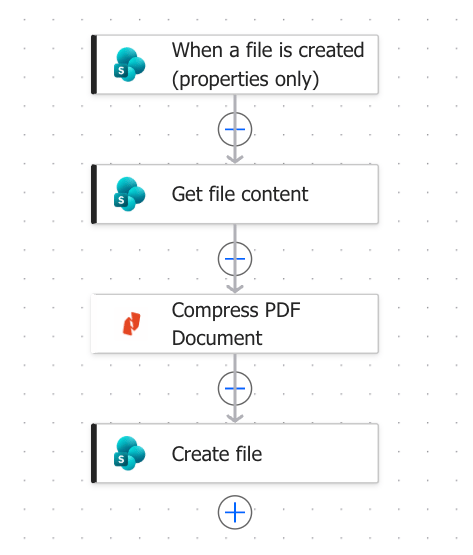 SharePoint trigger, scoped to the document library you want to watch.
Only continue when the file is a PDF:
```
endsWith(triggerOutputs()?['body/{FilenameWithExtension}'], '.pdf')
```
SharePoint. **File Identifier** → the trigger's **Identifier**.
Nitro. **PDF File** → the previous step's **File Content**.
SharePoint. **Folder Path** → `/Shared Documents/Archive`.
**File Name** → the trigger's **File name with extension**.
**File Content** → the Nitro step's **File Content**.
Writing the output back to the folder that fires the trigger will loop. Use a different folder or
library, or add a condition on the trigger's **Folder path**.
## Related
* [Optimize PDF Document](/docs/integrations/power-automate/actions) — choose a profile instead of always-smallest
* [Working with files](/docs/integrations/power-automate/working-with-files)
* [Compress API reference](/docs/api-reference/platform/transformations/compress)
SharePoint trigger, scoped to the document library you want to watch.
Only continue when the file is a PDF:
```
endsWith(triggerOutputs()?['body/{FilenameWithExtension}'], '.pdf')
```
SharePoint. **File Identifier** → the trigger's **Identifier**.
Nitro. **PDF File** → the previous step's **File Content**.
SharePoint. **Folder Path** → `/Shared Documents/Archive`.
**File Name** → the trigger's **File name with extension**.
**File Content** → the Nitro step's **File Content**.
Writing the output back to the folder that fires the trigger will loop. Use a different folder or
library, or add a condition on the trigger's **Folder path**.
## Related
* [Optimize PDF Document](/docs/integrations/power-automate/actions) — choose a profile instead of always-smallest
* [Working with files](/docs/integrations/power-automate/working-with-files)
* [Compress API reference](/docs/api-reference/platform/transformations/compress)